
Key Settings
After creating a key, you can edit its purpose, group, status, or restriction rules from the console. Find the key, open the edit page, then click “Update” after making changes.
Settings Example
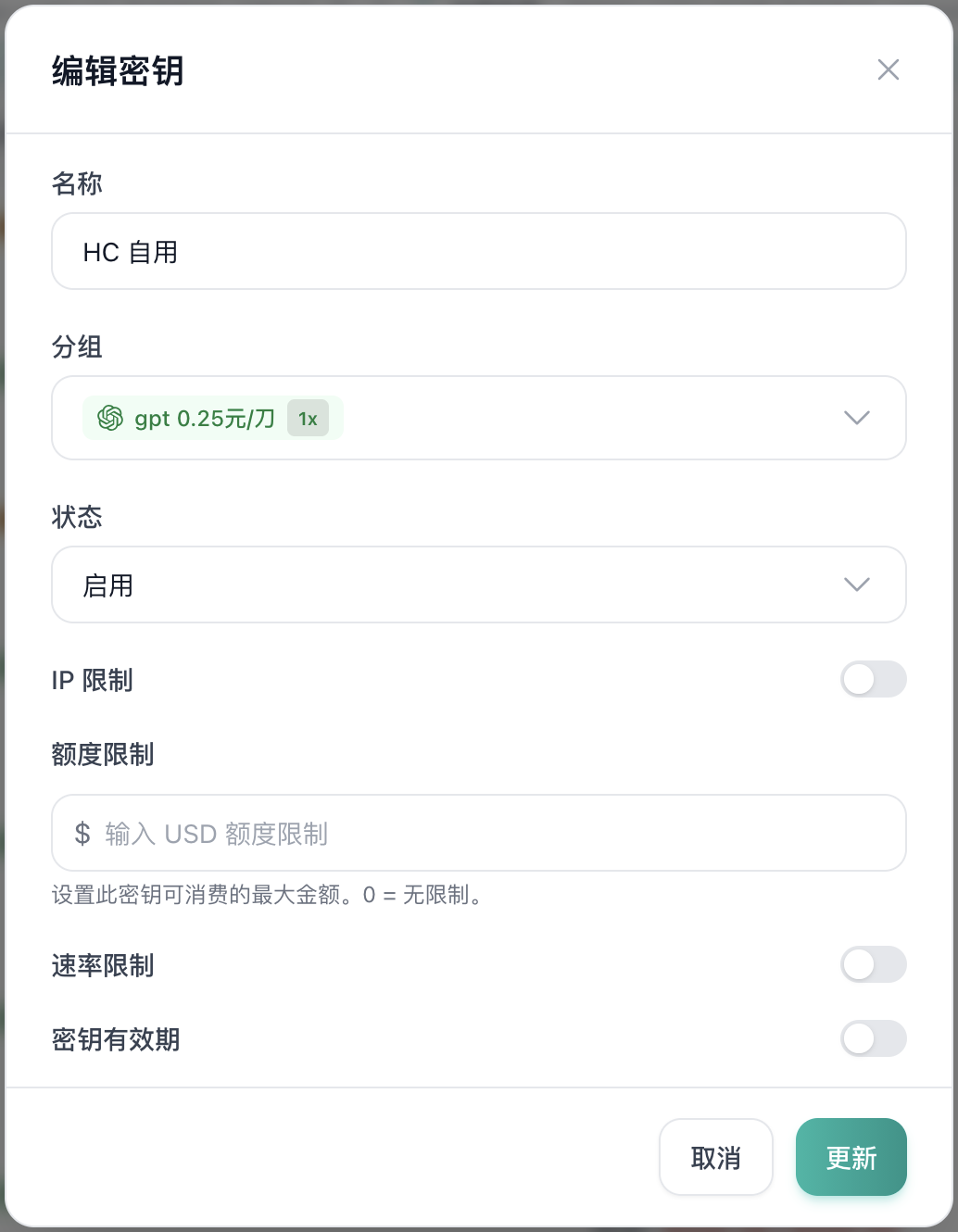
Basic Information
Name
The name helps you identify what the key is used for. Use a clear name based on the tool, scenario, or team member, such as HC Personal, claude-code-main, or team-test.
Group
The group determines which models the key can use, along with the pricing multiplier or routing policy. Choose the group based on the model you want to use, such as gpt 0.25 CNY / $1 quota, CC Kiro Channel, or CC Official Channel.
Status
Status controls whether the key can be used:
- Enabled: the key can make requests normally.
- Disabled: the key stops working, useful for temporary suspension, risk checks, or pausing an environment.
Restrictions
IP Restriction
IP restriction limits which source IPs can use the key. Most personal users can keep it off. Enable it only when you use a fixed server or clearly know the outbound IP address.
Quota Limit
Quota limit sets the maximum USD amount this key can consume. 0 means unlimited. For teams, test environments, or temporary keys, set a clear quota to avoid unexpected usage.
Rate Limit
Rate limit controls request frequency. Most users do not need to enable it. Use it only when you want to prevent a tool from sending too many requests in a short period.
Key Expiration
Key expiration controls when the key becomes invalid. For long-term personal use, you can leave it empty. For temporary tests, shared configuration, or short-term projects, set an expiration time.
Tip
Leave IP restrictions, quota limits, rate limits, and key expiration empty. You do not need to configure them unless you clearly understand what they do.
Note
- Saved changes usually take effect immediately.
- If your tool caches configuration, restart the tool.
- If changing the group leads to unexpected behavior, create a new key and update your tool configuration.
Keep Your Key for Later
After creating or updating settings, make sure your Key is saved. You will need it when configuring environment variables.
# Windows PowerShell
$env:ANTHROPIC_AUTH_TOKEN="Your Key"# macOS/Linux
export ANTHROPIC_AUTH_TOKEN="Your Key"Next Steps
- Start Deployment - Configure AI coding tools