
Install Node.js on Windows
The required runtime environment for the three major AI coding tools.
Important
Claude Code and Codex CLI both require Node.js 18+. If Node.js 18 or later is already installed, you can skip this section.
Verification command: node -v
Method 1: Official Installer (Recommended)
- Visit the Node.js download page: https://nodejs.org/zh-cn/download
- Download the LTS Windows Installer (
.msi). - Run the installer and keep the default options.
- The installer automatically configures the system
PATHenvironment variable.
Node.js Download Page
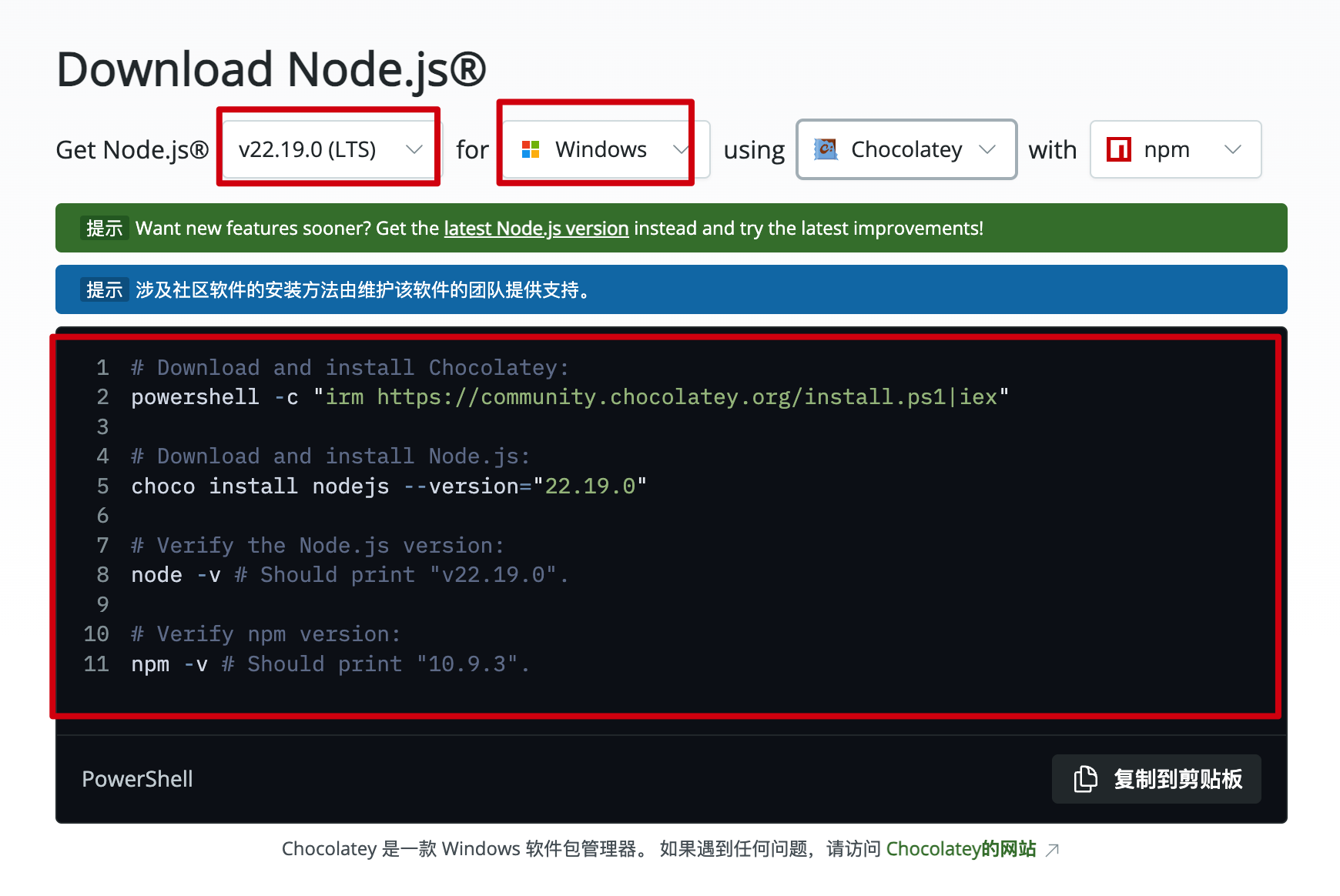
Method 2: Package Manager
Winget
For Windows 11 or recent Windows 10 versions:
powershell
winget install OpenJS.NodeJS.LTSChocolatey
Install Chocolatey first, then run:
powershell
choco install nodejs-ltsScoop
powershell
scoop install nodejs-ltsVerify Installation
Open Command Prompt or PowerShell and run:
powershell
node --version
npm --version
If version numbers are displayed, such as v18.x.x or later, the installation is successful.
FAQ
“Not recognized as an internal or external command”
- Reopen the terminal window.
- Check whether the
PATHenvironment variable includes the Node.js path. - Restart the computer and try again.
Installation failed
- Run the installer as administrator.
- Temporarily disable antivirus software and retry.
- Check whether the system drive has enough free space.
Next Steps
✅ Environment ready!
You can now continue installing Claude Code, Codex CLI, Codex Desktop, or OpenCode.