
CC-Switch Quick Configuration Tool
An All-in-One AI CLI manager delivered as a cross-platform desktop app for managing Claude Code and Codex local configurations.
Download Tip
If GitHub downloads are slow or unavailable, you can join our QQ group and download the installer from the group files.
Related Links
| Resource | URL |
|---|---|
| GitHub releases | cc-switch/releases |
| CC-Switch docs | ccswitch.lovable.app |
Overview
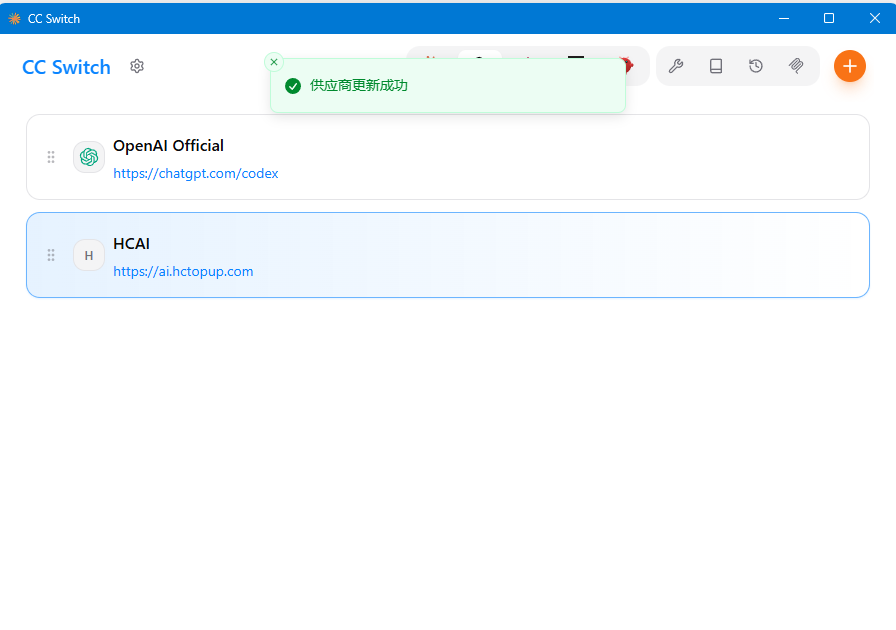
CC-Switch is a cross-platform desktop app for managing provider configurations for Claude Code and Codex. Its graphical interface supports provider switching, MCP server management, system prompts, Claude Skills, configuration backup and restore, and related local setup tasks.
Core Features
- Switch provider configurations for different AI tools with one click.
- Test API endpoint speed with quality indicators.
- Manage multiple preset system prompts.
- Manage MCP servers from a unified architecture.
- Discover and install Claude Skills.
- Back up and restore configurations, keeping the latest 10 backups automatically.
- Use deep-link protocols such as
ccswitch://. - Detect environment-variable conflicts.
Installation
Windows
MSI Installer (Recommended)
- Open the project releases page.
- Download the latest
.msiinstaller. - Run the installer and follow the wizard.
- Start CC-Switch from the Start menu after installation.
Portable Version
- Download the portable
.zippackage. - Extract it to any directory.
- Run
cc-switch.exe.
macOS
Homebrew (Recommended)
brew tap farion1231/ccswitch
brew install --cask cc-switch
Manual Install
- Open the Releases page.
- Download the
.dmgpackage. - Open the DMG and drag CC-Switch into Applications.
- Start it from Launchpad or Applications.
Linux
Debian / Ubuntu (Recommended)
sudo dpkg -i cc-switch_*.deb
sudo apt-get install -f
AppImage
chmod +x cc-switch_*.AppImage
./cc-switch_*.AppImage
Arch Linux (AUR)
paru -S cc-switch-bin
# or use yay
yay -S cc-switch-bin
Quick Start
Step 1: Initialize Settings
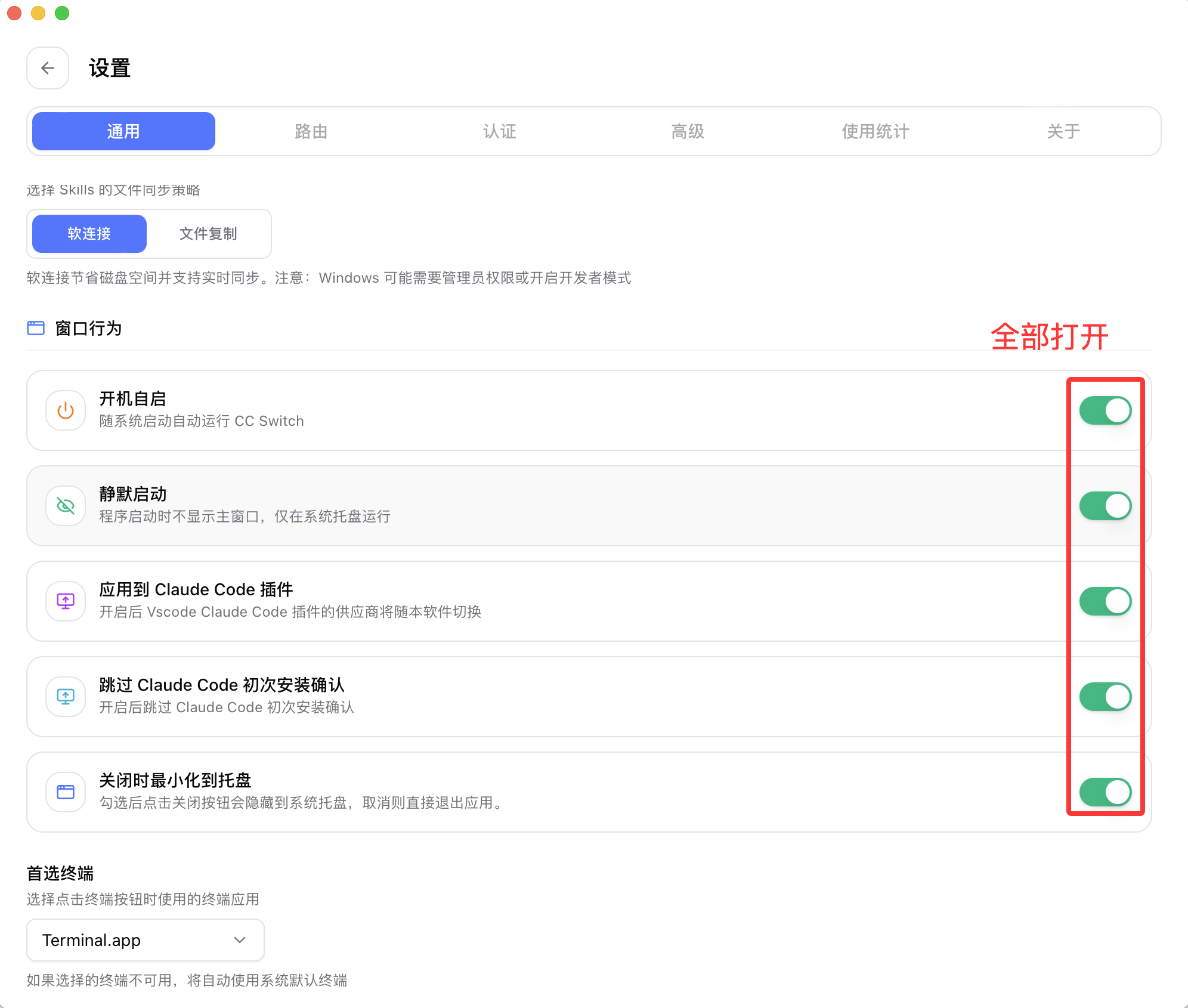
Open CC-Switch, go to Settings, then enable all switches under Window Behavior in the General tab. This keeps auto start, Claude Code plugin integration, tray minimization, and related behavior working as expected.
Recommended Settings
Enable every switch under Window Behavior for the best experience: auto start, silent launch, apply to the Claude Code plugin, skip first-install confirmation, and minimize to tray on close.
Step 2: Add A Provider Configuration
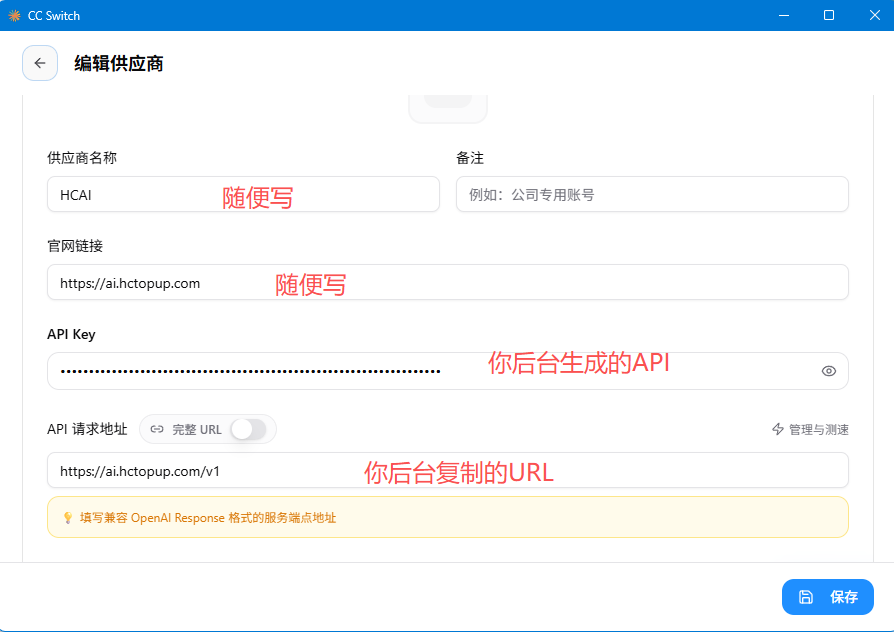
- Click the plus button in the upper-right corner to add a Claude Code or Codex provider configuration.
- Choose the matching tool type, then fill in provider name, website URL, API Key, and API request URL.
- Click Save.
Important
Different AI tools require different token-group configurations. Create matching usable Keys for Claude Code and Codex in HCAI, and confirm the model group is correct.
Step 3: Switch Provider
- Select the configuration you want in the provider list.
- Click Enable.
- You can also switch instantly from the system tray icon.
System tray quick switch:
- Right-click the CC-Switch icon in the system tray.
- Select the provider from the menu.
- The configuration switches immediately; Claude Code supports hot reload, while other tools may need to be restarted.
Step 4: Apply Configuration
After switching configurations, close and restart the corresponding AI tool to apply the new configuration automatically.
Full Documentation
For detailed configuration and advanced features, see the official CC-Switch documentation.
Project Resources
- GitHub repository: https://github.com/farion1231/cc-switch
- Feedback: GitHub Issues
- Latest version: Releases page
Start Using It
You can now use CC-Switch to manage multiple AI coding tool configurations with less friction.